Actions
Actions let you execute commands and control your systems directly from the Zelos App. They provide interactive parameter execution options and display results, making it easy to control devices, run diagnostics, or trigger automated processes locally or remotely.
Overview
Actions are functions exposed by your Zelos Agent that can be executed remotely through the app. They appear in the sidebar tree where you can drag them to create interactive control panels with custom parameters and real-time results.
Key Features
- Interactive Parameters - Rich inputs with parameter validation
- Real-time Execution - Run commands on connected systems
- Result Display - View responses directly in the panel
- Parameter Persistence - Settings saved in layouts
Live Mode Only
Actions require an active connection to a Zelos Agent. They are not available when viewing trace files.
Using Actions
Finding Actions
Actions appear in the sidebar when connected to an agent:
- Connect to an agent - Establish a live connection
- Open the Actions view - Click the Actions icon in the sidebar
- Browse the tree - Actions are organized by namespace
- Search - Use the search box to find specific actions
Creating an Action Panel
To use an action:
- Add an Action panel - Click Add Panel in the timeline toolbar, then select Action
- Drag an action - Drop any action from the tree onto the panel
- Configure parameters - Fill in the required fields
- Execute - Click the Execute button, or press Enter when Enter to Execute is enabled
- View results - Response appears below the parameters
Action Organization
Namespace Structure
Actions are organized hierarchically:
Example organization:
power/set_voltage- Power control actiondiagnostics/self_test/memory- Nested diagnostic actiongpio/read_pin- GPIO operation
Tree Navigation
- Expand/collapse folders with arrow icons
- Drag actions directly to panels
- Search filters the tree to matching actions
- Empty folders appear grayed out
Parameter Types
Actions support various parameter types with appropriate UI widgets:
| Type | Widget | Purpose |
|---|---|---|
| Text | Text field, textarea | Strings, names, IDs |
| Number | Number input, slider | Numeric values |
| Boolean | Checkbox, toggle | On/off states |
| Select | Dropdown, radio | Predefined choices |
| Date | Date picker | Date selection |
| File | File upload | File inputs |
Dynamic Parameters
Some actions have dynamic parameters that change based on other inputs:
- Dependent fields - Show/hide based on conditions
- Dynamic choices - Options update based on context
- Validation - Real-time input validation
Execution & Results
Running Actions
Action panels support two execution modes:
- Button (default) - Fill parameters, then click the Execute button
- Enter to Execute - Execute by pressing Enter instead of clicking a button
In both modes, parameter edits still drive dynamic schema updates first. This allows dependent fields and required inputs to resolve normally before execution happens.
Result Display
Results appear below the parameters:
Result features:
- JSON formatting - Structured, readable output
- Expandable sections - Collapse/expand nested data
- Copy button - Copy entire result to clipboard
- Error display - Clear error messages if action fails
- Status badge - Shows the action status reported by the agent, such as pass, fail, done, or error
Execution States
Action panels show different states:
- Ready - Parameters configured, ready to execute
- Executing - Action running (with spinner)
- Success - Result displayed
- Error - Error message shown
- Timeout - Action exceeded time limit
Panel Settings
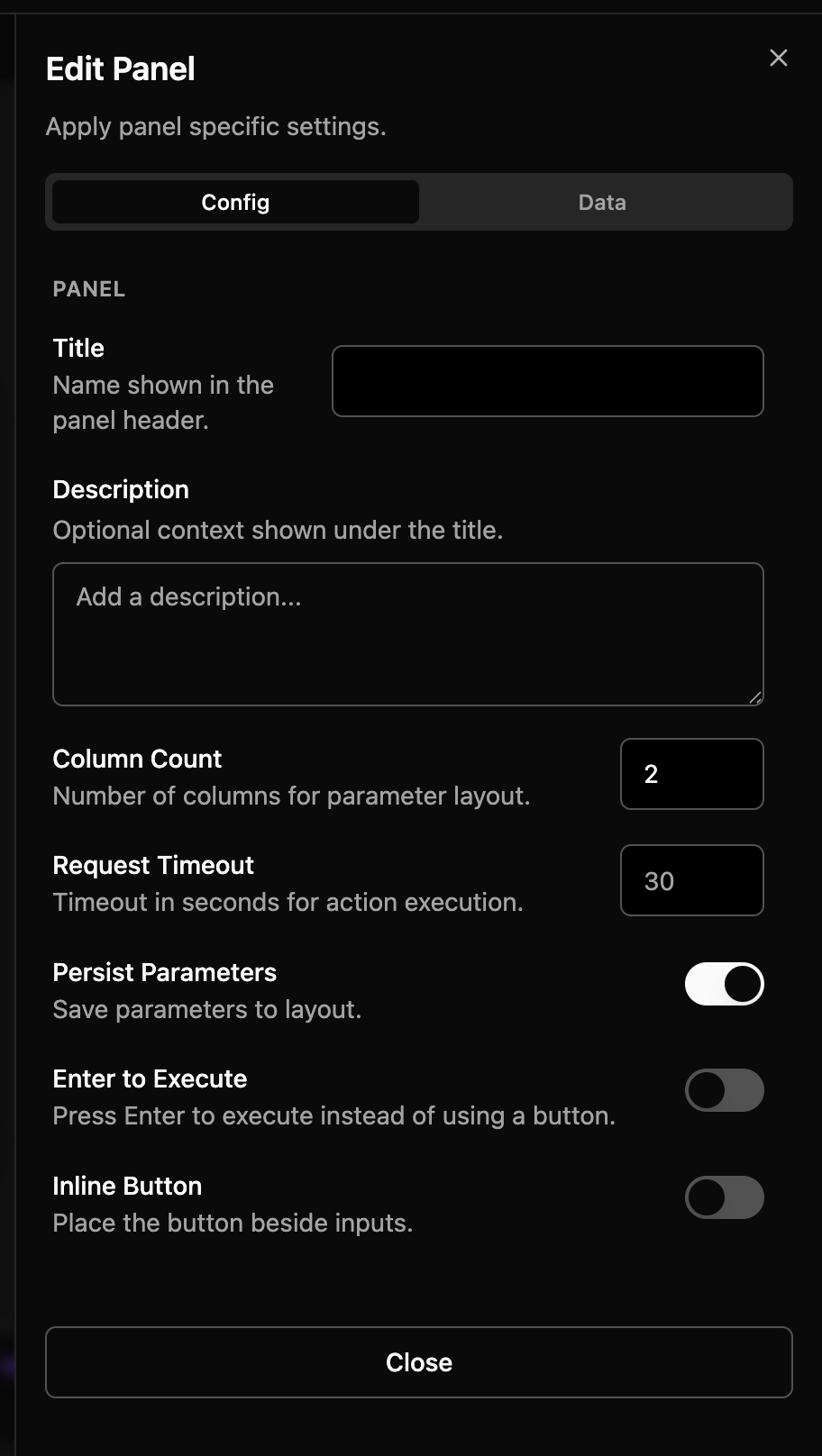
Click the pencil-shaped Edit button in the panel header, then open Config.
Config Controls
Title and Description
Set a custom title and optional description for the panel header. When left blank, the panel uses metadata from the selected action.
Column Count
Choose how many columns (1-12) the parameter form uses.
Request Timeout
Set the maximum execution time in seconds. Leave it blank to use the action's declared timeout, or 30 seconds when the action does not declare one.
Persist Parameters
Save entered parameter values in the layout. Turn this off to avoid writing parameter edits into the layout.
Enter to Execute
Press Enter in the parameter form to execute the action. Enabling this hides the Execute button.
Inline Button
Place the Execute button beside the parameter inputs. This control is shown only when Enter to Execute is off and applies to actions that have input fields.
To change defaults for new Action panels, open Settings from the sidebar, select Panels, then expand Action. The defaults include column count, parameter persistence, Enter to Execute, and inline button placement.
 View More
-
Explore other panel types
-
Save your Action configurations
-
Create custom actions in Python
Pro Tip
Combine Action panels with Plot and Value panels to create complete control dashboards. Use Actions to trigger changes and visualize the results in real-time.