Organizations
An organization is your team's shared space in Zelos Cloud. It holds the traces you upload, the notebooks you publish, the layouts you save, and the AI credits you use together. Your account belongs to one or more organizations.
Get started
Sign in to the desktop app. An account with no organization is asked right away to create one or join one, and the app waits until it does. If you signed in with the wrong account, Sign out at the bottom of the prompt lets you sign in with another.
Create an organization
If your team is new to Zelos, create the organization. You become its owner.
- Check the Organization name under the title Name your organization.
Zelos fills it in: your company name from a work email, or a team named
after you from a personal email, for example
Ada's team. Edit it if needed, for exampleAcme Robotics. - Read the URL line under the field. It shows the URL Zelos derives from the name, and it appears in links to your team's cloud content. Select Change to edit it. Use lowercase letters, numbers, and single hyphens. You cannot change the URL after you create the organization.
- Press
Enteror select Continue.
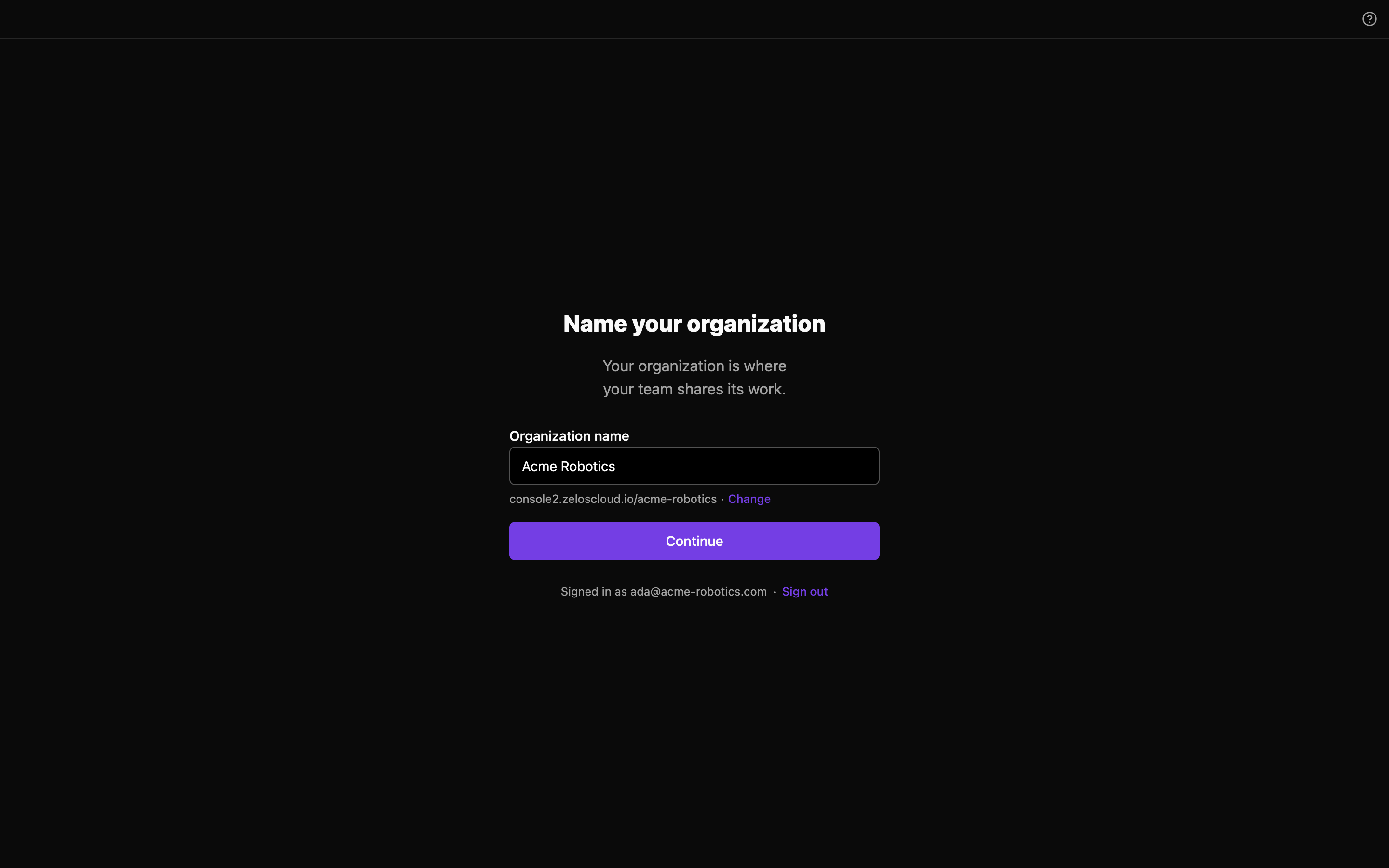
The organization is ready as soon as you continue. On your first launch, the app then asks what you're working with (see Getting Started). The Cloud view lists your team's traces and notebooks, and Zelos AI is available.
If you signed in with a Google Workspace or Microsoft work account, teammates who sign in with the same workspace can join your organization with one click. Owners and admins can turn this off in the console. A school's Workspace or Microsoft 365 is never linked this way, so invite your teammates instead.
Join your team
If your team already uses Zelos, the prompt lists what you can join.
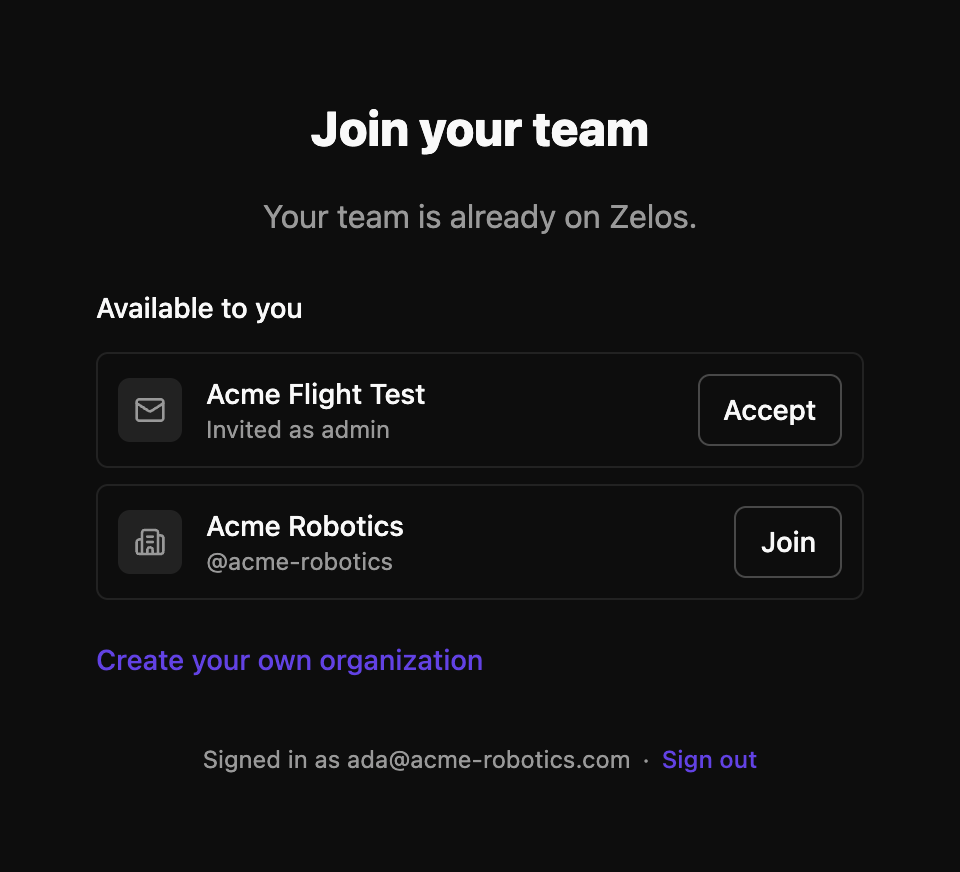
- Accept an invitation an owner or admin sent to your email address. Accepting keeps the role they chose for you.
- Join an organization that admits your Google Workspace or Microsoft work account. You join as a member.
- Select Create your own organization to create a new one instead.
If the prompt says your company may already be on Zelos, ask an admin to invite you. If you signed in with a personal account, sign out and sign in with your work account so the app can verify it.
Fix common problems
The organization URL is taken. If you did not change the URL, Zelos adds
the next free number to it, for example acme-robotics-2. If you changed it,
the URL field opens: choose another URL. The name can stay the same.
The organization URL is reserved. Select Continue: the URL field opens. Choose another URL.
Accept is refused because your email is not verified. Open the verification email Zelos sent when you first signed in. If you no longer have it, sign out, sign in again, and enter the confirmation code Zelos emails you. Then accept the invitation again.
An invitation or join you expected is missing. Invitations expire. Ask an owner or admin to invite you again, or to check automatic joining for your work account.
You are asked to sign in again. Your stored sign-in can no longer manage organizations. Select Sign in again, sign in, and the prompt returns.
You are offered "Set up in the console". Your account is signed in, but the console you are connected to does not accept organization changes from the app yet. Select it to finish in the console; the app picks up the membership on its own.
Manage the organization
Invite teammates, set roles, configure automatic joining, and handle billing in the console. In the app, open Settings to switch between the organizations you belong to, or select Add organization there to accept an invitation, join another organization, or create one. An account can belong to any number of organizations.