Workspace
A workspace is your session container in Zelos. It maintains all your tabs, panels, connections, and settings, automatically persisting everything you need.
What a Workspace Contains
A workspace manages:
- All tabs - Layout, notebook, cloud notebook, extension, app extension, and settings tabs
- Panel arrangements - Grid positions and configurations
- Signal selections - Which signals are displayed and their settings
- Mode state - Connection to live agent or loaded trace file
- Timeline state - Current time position and zoom level
- Explorer tree state - How far the signal and action trees are expanded, and whether idle signals are listed
Automatic Persistence
Workspaces automatically save all changes to local storage. Zelos persists logical panel bindings (signal path plus any required trace or agent scope), not raw samples, so your workspace can be restored cleanly across sessions and restarts.
What autosave actually stores
Workspace autosave stores logical panel configuration, including signal scopes and colors, but not runtime-only segment-instance IDs. When you reopen a workspace, Zelos rebinds saved signals against the current trace and/or agent data using the saved path and scope.
The Title Bar
The title bar runs across the top of the window. Its center shows where you are.

In the center:
- Home (house icon) takes you to Home. Its tooltip reads Go to Home, and its shortcut is
Cmd+Shift+H(macOS) orCtrl+Shift+H(Windows/Linux). On Home, it stays in place but can't be clicked. - The workspace name follows Home. Click it to open the workspace name menu, or double-click it to rename the workspace. When the name is cut short, hover it to read all of it. On Home, it reads No workspace.
- Undo and Redo follow the name. With nothing to undo or redo, they stay in place but can't be clicked.
On the right:
- An update button appears when there is an update to install. See Updates.
- Ask Zelos (sparkles icon) opens the AI chat in whichever sidebar holds it. It puts the cursor in the message box and keeps what you already typed. Its shortcut is
Cmd+L/Ctrl+L. In a narrow window, the label hides and the icon stays. - Help (question mark) opens the Help menu.
- The left sidebar, timeline, and right sidebar toggles. Each icon is solid while its part is open and dashed while it is closed. The timeline toggle is unavailable on Home.
- On Windows and Linux, the window controls.
The window's own title is <workspace name> - Zelos in a workspace and Zelos on Home. It shows in the taskbar, Alt+Tab, Mission Control, and the Window menu.
Help Menu
Click the question mark in the title bar to open the Help menu:
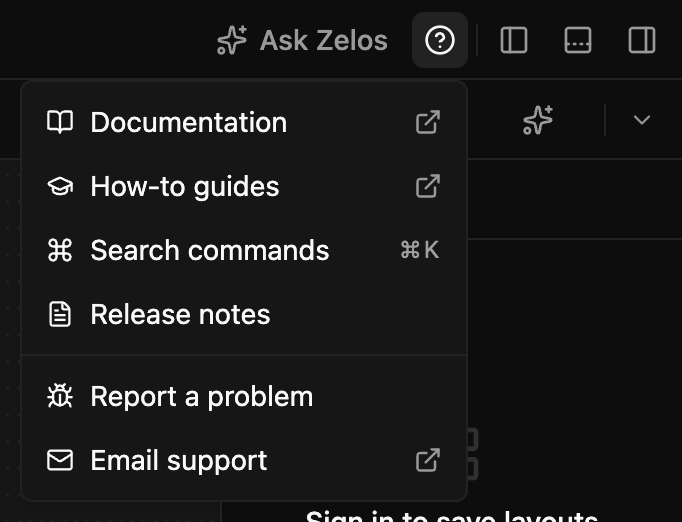
- Documentation opens this documentation site in your browser.
- How-to guides opens the step-by-step guides on the Zelos website.
- Search commands opens the command palette (
Cmd+K/Ctrl+K). - Release notes shows what changed in each version.
- Take the tour starts the guided tour. It appears only when the tour can start: you are signed in and belong to an organization.
- Report a problem opens the same dialog as Settings.
- Email support opens your mail app with a message to
[email protected].
The sign-in screen has Help too, with Documentation, How-to guides, Report a problem, and Email support. The first-launch screens show the same four: the organization page and the question about what you are working with.
On macOS, the menu bar's Help menu has Documentation, How-To Guides, Release Notes, Report a Problem, and Email Support.
Workspace Modes
Workspaces operate in two modes that determine available features:
Live Mode
Connected to a running agent for real-time data.
- Real-time signal streaming from connected application
- Live action execution on the agent
- Dynamic signal discovery as data flows
- Sliding time window (default: 30 seconds)
Connecting:
- Click Connect localhost on Home
- Default connects to
localhost:2300 - Or click New agent in the Data view (right sidebar), type a hostname, and click Connect. The button reads Add agent while any agent is connected.
Trace Mode
Analyzing previously recorded trace files.
- Playback of recorded signals
- Time-scrubbing through entire trace duration
- No live actions (no agent available)
- The Explorer's ACTIONS and EXTENSIONS sections are hidden
Opening a trace:
- Click Open trace on Home, or drag
.trzfiles onto Home - Select one or more
.trzfiles from the file dialog (multi-select supported) - Workspace switches to trace mode automatically
To open a trace from Zelos Cloud, click Open cloud trace on Home, or open it from the Cloud view.
Quick Mode Switching
The DATA SOURCES section of the Data view in the right sidebar (Cmd+J / Ctrl+J) lets you quickly switch between agents or open different trace files.
Multi-Trace Mode
A workspace can hold several trace files at once. Use it to compare test runs and correlate events across traces.
Opening Multiple Traces
Use Add trace in the Data view to append another trace file. It offers Cloud and File.
Add vs. Replace
"Add trace" appends to your existing traces rather than replacing them. To start fresh with a single trace, close the open file, then open the new file.
Signal Tree Hierarchy
When working with multiple traces, the signal tree in the left sidebar displays a clear hierarchy:
Trace (file basename / alias)
└── Agent (shown when any open trace holds more than one agent)
    └── Source
        └── Event
            └── Field
Trace Aliases
Trace aliases provide a human-readable way to identify your traces:
- Automatically derived from the trace filename (e.g.,
path/to/flight_test_001.trzbecomesflight_test_001) - Displayed in the signal tree and signal paths
- Used to scope signals to specific traces
Time Modes
For multi-trace workspaces, Zelos supports two timeline coordinate systems.
Relative Time Mode (REL)
All traces are aligned so each one starts at t=0.
- Best for side-by-side run comparison
- Makes offset and duration differences easier to inspect
- Timeline labels are elapsed-time values
Absolute Time Mode (ABS)
Traces are shown at their original wall-clock timestamps.
- Best for incident reconstruction and real-world time correlation
- Useful when traces were captured during the same event window
- Traces may appear separated if they were recorded at different times
Which Time Mode You Get by Default
Opening multiple traces defaults the workspace to relative mode, so two or more traces are aligned by elapsed time from each one's own start rather than by wall-clock time. Returning to a single trace resets the workspace to absolute mode, which shows every sample at its original wall-clock timestamp.
You can toggle ABS/REL from the timeline toolbar at any time.
Signal Scoping
When working with multiple traces, understanding signal scoping helps you control which data appears in your panels.
Portable Signals
Work across all data sources
- No trace or agent specified in the signal reference
- Automatically match signals with the same path from any trace and/or agent
- Ideal for panels that should display comparable data from all sources
Scoped Signals
Bound to a specific trace and/or agent
Signals can be scoped to control exactly which data source they match:
| Scope | Format | Matches |
|---|---|---|
| Portable | source/message.signal |
Any trace, any agent |
| Agent only | agent::source/message.signal |
Specific agent, any trace |
| Trace only | trace:source/message.signal |
Specific trace, any agent |
| Both | trace:agent::source/message.signal |
Specific trace AND agent |
Scoping Example
To compare motor RPM between two test runs:
- Portable:
motor/status.rpmshows RPM from all traces/agents overlaid - Agent-scoped:
agent::motor/status.rpmshows RPM only from that agent - Trace-scoped:
flight_test_001:motor/status.rpmshows RPM only from that trace - Fully scoped:
flight_test_001:agent::motor/status.rpmshows RPM from that specific trace and agent
What Zelos Saves When You Add a Signal
When you add a signal from the sidebar, drag a chip to another panel, or double-click a signal, Zelos rewrites the binding to the most portable form that still disambiguates the current workspace:
| Current workspace shape | Stored binding |
|---|---|
| One trace, one producer | source/message.signal |
| Multiple live producers | agent::source/message.signal |
| Multiple traces, one producer each | trace:source/message.signal |
| Multiple traces and multiple producers | trace:agent::source/message.signal |
This keeps workspaces portable by default:
- Single-source workspaces do not keep unnecessary
tracePathorproducerscope - Multi-agent and multi-trace workspaces keep only the scope needed to tell sources apart
- Moving the same signal into another panel or tab re-evaluates that policy again on the destination
Runtime-only overlap expansion
If one logical signal resolves to overlapping data segments in the current view, Zelos can temporarily expand it into multiple segment-bound series or cells so you can inspect them separately. Those segment IDs are stripped from workspace and layout persistence; the saved state keeps the logical signal binding and resolves overlap again when restored.
Multi-Agent Mode
Connect to multiple live agents simultaneously and monitor their data in a single workspace.
Connecting Multiple Agents
Add connections to multiple agents with Add agent in the Data view in the right sidebar. Each agent connection appears in the Active section with status indicators.
Signal Tree Hierarchy
When connected to multiple agents, the signal tree displays:
Working with Tabs
Organize your workspace using tabs, similar to a web browser.
Tab Types
Layout Tabs
- Main visualization tabs containing panels
- Can have multiple layout tabs per workspace
- Supports Plot, Table, Raw, Log, Value, State, and Action panels
- Action panels can only be created in live workspaces
- Can be renamed by double-clicking the tab name
- Can be saved as reusable layouts
Signals always open in layout tabs
Double-clicking a field in the Explorer creates the panel that fits the field's type, such as a Plot for a number or a Log panel for a log field. Dragging signals into the layout does the same; see Add and arrange panels. If the active tab is already a layout tab, the new panels are added there; otherwise, Zelos opens a new layout tab for them automatically.
Extension Tabs
- Display an extension's detail page
- Opened by clicking an extension in the Explorer's EXTENSIONS section or the Extensions view
App Extension Tabs
- Display an installed app extension
- One tab per app extension
- Opened from its item in the sidebar rail or the
⌄menu
Notebook Tabs
- One tab per open notebook
- Opened from the Notebooks view, Home, or the command palette
- See Zelos Notebooks
Cloud Notebook Tabs
- A read-only view of a notebook published to Zelos Cloud
- Opened from the Cloud view, the Cloud list on Home, a
zelos://link, or Zelos AI - A version picker switches between published versions; the newest is marked Latest
- Save to library saves the shown version into your notebooks folder as an editable copy. Once a local copy exists, the button reads Open local copy, and Save a copy saves another
- When your local copy is behind, Update to latest replaces it with the newest published version
- See Zelos Notebooks
Settings Tab
- Global application settings
- Only one settings tab per workspace
Tab Operations
| Action | Method | Shortcut |
|---|---|---|
| New tab | Click + button or Tab Menu | Cmd+T / Ctrl+T |
| Close tab | Click × on tab, or right-click → Close Tab | Cmd+W / Ctrl+W |
| Close other tabs | Right-click a tab → Close Other Tabs | — |
| Close all tabs | Tab Menu → Close All Tabs | — |
| Reopen closed tab | Tab Menu or shortcut | Cmd+Shift+T / Ctrl+Shift+T |
| Rename | Double-click tab name | — |
| Reorder | Drag tab left or right | — |
| Switch | Click tab or use number | Cmd/Ctrl + 1-9 |
| Next tab | Cycle forward | Cmd/Ctrl+Shift+] or Cmd/Ctrl+Alt+Right |
| Previous tab | Cycle backward | Cmd/Ctrl+Shift+[ or Cmd/Ctrl+Alt+Left |
Additional Actions:
- Middle-click to close a tab
- Right-click a tab for Close Tab and Close Other Tabs
- Tab Menu (⋮ button at the right end of the tab bar, or a right-click on empty tab-bar space) holds New Tab, Reopen Closed Tab, Recently Closed, and Close All Tabs
- Tabs auto-scroll into view when switching
Restoring Closed Tabs
Accidentally closed a tab? Zelos keeps track of your recently closed tabs so you can restore them.
- Press
Cmd+Shift+T(Mac) orCtrl+Shift+T(Windows/Linux) to reopen the last closed tab - Use Tab Menu → Recently Closed to browse and restore specific tabs
- Up to 20 recently closed tabs are remembered per workspace
- Closed tabs persist across sessions

Undo Close All
When you close all tabs, each tab is added to the recently closed list. Press Cmd/Ctrl+Shift+T repeatedly to restore them one by one.
Closing the Last Tab
Closing the last tab keeps you in the workspace. The main area shows No tabs open. Press Cmd+T / Ctrl+T or + for a new layout, drag a signal there to start one, or drop trace files to open them.
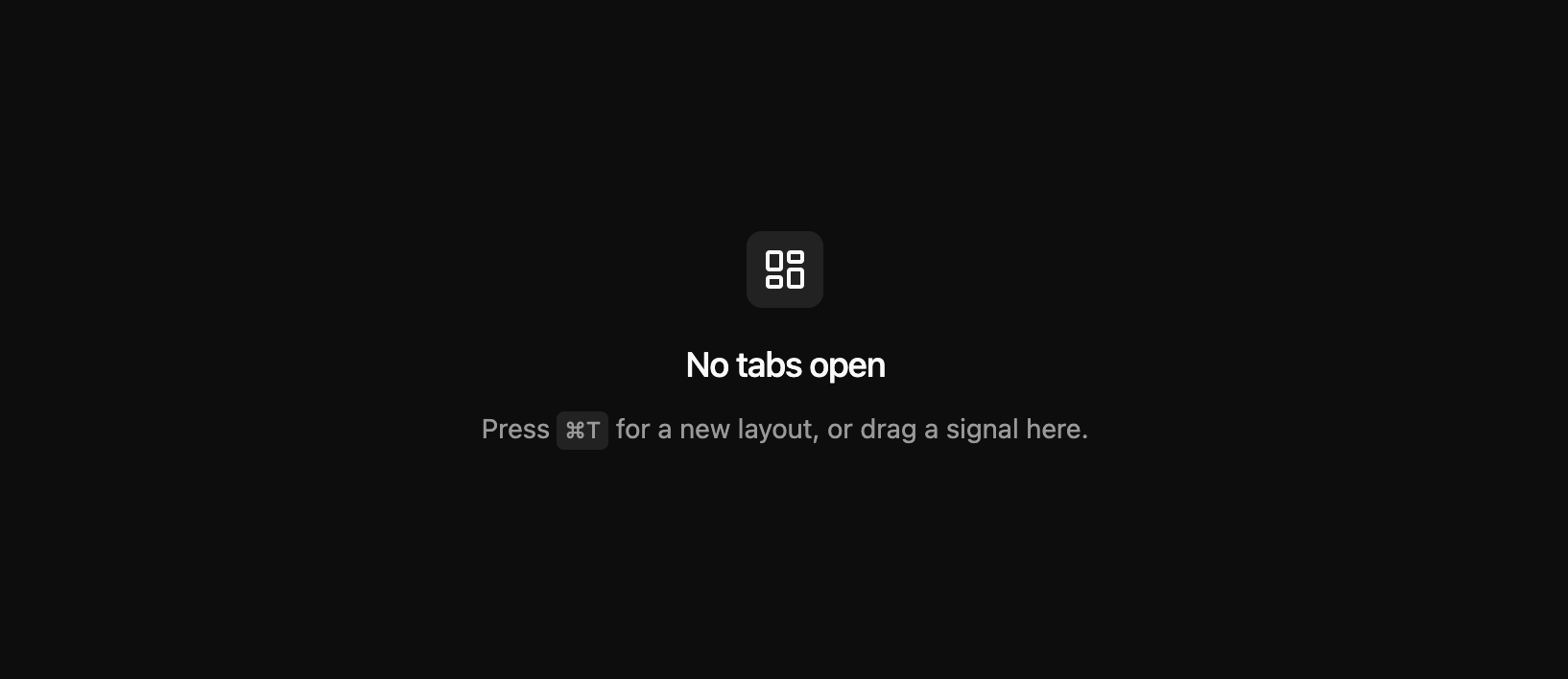
A window that holds nothing shows Home when no tab is open. Nothing means no data, no notebooks, no layout with panels, and no name you gave the workspace.
Tab Renaming
Only layout tabs can be renamed:
- Double-click the tab name to enter edit mode
- Type your new name (max 50 characters)
- Press
Enterto save orEscto cancel - Click outside the input to save
New layout tabs are named "Untitled 1", "Untitled 2", and so on.
Workspace Name Menu
The workspace itself has a separate name from its layout tabs. Click the name in the center of the title bar to open its menu:
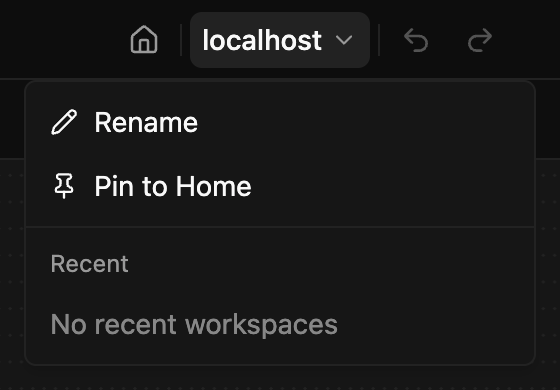
- Rename turns the name into a field in the title bar. Type the new name, then press
Enterto save orEscto cancel. Clicking or tabbing away also saves. Double-clicking the name starts the same rename. - Pin to Home pins the workspace in Home's Workspaces list. A pinned workspace shows Unpin from Home.
- Up to five recent workspaces follow. Click one to switch to it. On Home, where the name reads No workspace, Rename and Pin to Home are grayed out, and the recent workspaces still open.
Switching leaves the current workspace first, the same way going Home does.
From Home, you can also rename a workspace from its row ⋮ menu in the Workspaces list. That same menu lets you remove the entry without reopening it first.
Workspace names vs. tab names
Renaming a workspace changes the name shown in the title bar, the window's title, and the recent-workspace list. Renaming a layout tab changes only that tab.
Workspace History
Workspace changes can be undone and redone while you work:
| Action | Shortcut |
|---|---|
| Undo workspace change | Cmd+Z / Ctrl+Z |
| Redo workspace change | Cmd+Shift+Z / Ctrl+Shift+Z (also Ctrl+Y on Windows and Linux) |
Undo and Redo also follow the workspace name in the title bar. They are also available from the command palette when history exists. The palette labels show the next action, such as "Undo: Add panel", so you know what will change before running it.
Workspace Lifecycle
Loading a Workspace:
- Workspaces persist locally automatically
- Connection state and trace files are restored
- All tabs, panels, and settings are preserved
- Saved signal bindings and colors are restored by logical path/scope rather than by transient segment instance
Leaving a Workspace:
- Click Home (house icon) in the title bar, press
Cmd+Shift+H/Ctrl+Shift+H, or choose Go to Home in the command palette - Zelos disconnects the workspace's agents and closes its traces
- Tabs, panels, and layout stay as they were
- The workspace becomes the newest entry in Home's Workspaces list
- Opening it again restores it and reconnects its agents
- Until you quit Zelos, the last 10 workspaces you left also keep their undo history, the series you hid, and table searches
- Switching workspaces from the workspace name menu leaves the current one the same way
- Nothing asks you to confirm
The Workspaces list:
- Home lists the workspaces you have opened, pinned ones first
- Click any recent workspace to resume it
- Use the row ⋮ menu to rename or remove a workspace without opening it
- Recent list is automatically maintained
Keyboard Shortcuts
Tabs
| Action | Shortcut |
|---|---|
| New tab | Cmd+T / Ctrl+T |
| Close tab | Cmd+W / Ctrl+W |
| Reopen closed tab | Cmd+Shift+T / Ctrl+Shift+T |
| Switch to tab 1-9 | Cmd/Ctrl + 1-9 |
| Next tab | Cmd/Ctrl+Shift+] or Cmd/Ctrl+Alt+Right |
| Previous tab | Cmd/Ctrl+Shift+[ or Cmd/Ctrl+Alt+Left |
| Save rename | Enter |
| Cancel rename | Esc |
Sidebars
| Action | Shortcut |
|---|---|
| Toggle left sidebar | Cmd+\ / Ctrl+\ |
| Toggle right sidebar | Cmd+J / Ctrl+J |
| Search left sidebar | Cmd+F / Ctrl+F |
| Search right sidebar | Cmd+Shift+F / Ctrl+Shift+F |
Workspace
| Action | Shortcut |
|---|---|
| Open command palette | Cmd+K / Ctrl+K |
| Undo workspace change | Cmd+Z / Ctrl+Z |
| Redo workspace change | Cmd+Shift+Z / Ctrl+Shift+Z |
| Go to Home | Cmd+Shift+H / Ctrl+Shift+H |
Shortcut Availability
Keyboard shortcuts are disabled when typing in input fields or text areas.
Best Practices
Tab Organization:
- Use descriptive tab names for layout tabs
- Keep related visualizations in the same tab
- Use separate tabs for different analysis views
Next Steps
-
Browse signals, actions, extensions, layouts, and connections
-
Create and configure data visualizations
-
Save and share panel arrangements
-
Trigger tab, timeline, and workspace actions quickly
-
Navigate time and control playback