Workspace
A workspace is your session container in Zelos. It maintains all your tabs, panels, connections, and settings, automatically persisting everything you need.
What a Workspace Contains
A workspace manages:
- All tabs - Layout, extension, and settings tabs
- Panel arrangements - Grid positions and configurations
- Signal selections - Which signals are displayed and their settings
- Mode state - Connection to live agent or loaded trace file
- Timeline state - Current time position and zoom level
- Sidebar state - Which sections are open and their contents
Automatic Persistence
Workspaces automatically save all changes to local storage. Your work is preserved across sessions and restarts.
Workspace Modes
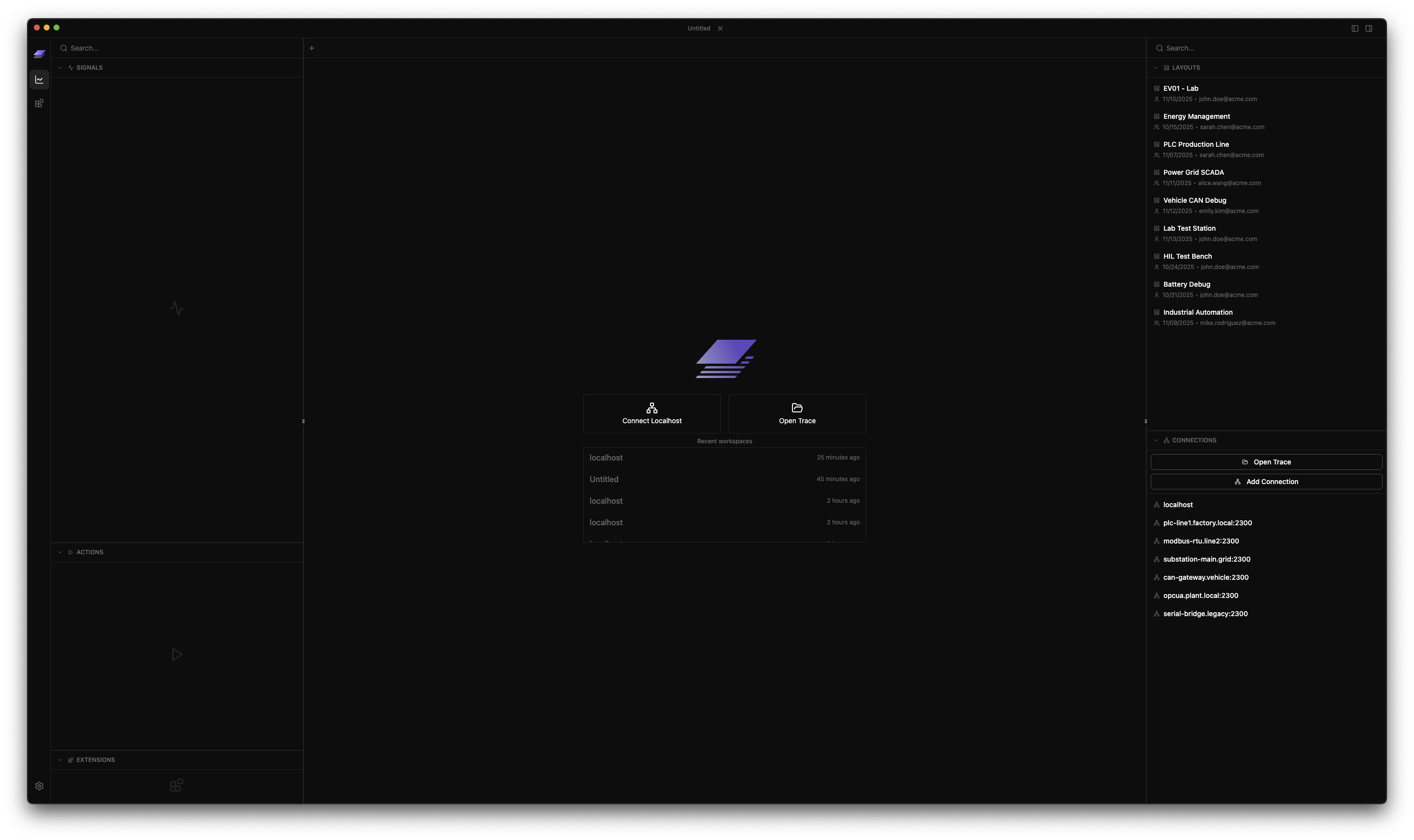
Workspaces operate in two modes that determine available features:
Live Mode
Connected to a running agent for real-time data.
- Real-time signal streaming from connected application
- Live action execution on the agent
- Dynamic signal discovery as data flows
- Sliding time window (default: 30 seconds)
Connecting:
- Click "Connect Live" from welcome screen
- Default connects to
localhost:2300 - Or enter custom address in Connections section (right sidebar)
Trace Mode
Analyzing previously recorded trace files.
- Playback of recorded signals
- Time-scrubbing through entire trace duration
- No live actions (no agent available)
- Actions section hidden in left sidebar
Opening a trace:
- Click "Open Trace" from welcome screen
- Select one or more
.trzfiles from the file dialog (multi-select supported) - Workspace switches to trace mode automatically
Quick Mode Switching
The Connections section in the right sidebar (Cmd+J / Ctrl+J) lets you quickly switch between connections or open different trace files.
Multi-Trace Mode
The Zelos App supports opening multiple trace files simultaneously in a single workspace. This powerful feature enables direct comparison of test runs, correlation of events across traces, and more flexible analysis workflows.
Opening Multiple Traces
Use "Add Trace" to append additional trace files
Add vs. Replace
"Add trace" appends to your existing traces rather than replacing them. To start fresh with a single trace, close the open file or workspace, then open the new file.
Signal Tree Hierarchy
When working with multiple traces, the signal tree in the left sidebar displays a clear hierarchy:
Trace Aliases
Trace aliases provide a human-readable way to identify your traces:
- Automatically derived from the trace filename (e.g.,
path/to/flight_test_001.trzbecomesflight_test_001) - Displayed in the signal tree and signal paths
- Used to scope signals to specific traces
Time Modes
For multi-trace workspaces, Zelos supports two timeline coordinate systems.
Relative Time Mode (REL)
All traces are aligned so each one starts at t=0.
- Best for side-by-side run comparison
- Makes offset and duration differences easier to inspect
- Timeline labels are elapsed-time values
Absolute Time Mode (ABS)
Traces are shown at their original wall-clock timestamps.
- Best for incident reconstruction and real-world time correlation
- Useful when traces were captured during the same event window
- Traces may appear separated if they were recorded at different times
Default Behavior and Switching
- Opening 2+ traces defaults the workspace to relative mode
- Returning to a single trace resets to absolute mode
- You can toggle
ABS/RELfrom the timeline toolbar at any time
Signal Scoping
When working with multiple traces, understanding signal scoping helps you control which data appears in your panels.
Portable Signals
Work across all data sources
- No trace or agent specified in the signal reference
- Automatically match signals with the same path from any trace and/or agent
- Ideal for panels that should display comparable data from all sources
Scoped Signals
Bound to a specific trace and/or agent
Signals can be scoped to control exactly which data source they match:
| Scope | Format | Matches |
|---|---|---|
| Portable | source/message.signal |
Any trace, any agent |
| Agent only | agent::source/message.signal |
Specific agent, any trace |
| Trace only | trace:source/message.signal |
Specific trace, any agent |
| Both | trace:agent::source/message.signal |
Specific trace AND agent |
Scoping Example
To compare motor RPM between two test runs:
- Portable:
motor/status.rpmshows RPM from all traces/agents overlaid - Agent-scoped:
agent::motor/status.rpmshows RPM only from that agent - Trace-scoped:
flight_test_001:motor/status.rpmshows RPM only from that trace - Fully scoped:
flight_test_001:agent::motor/status.rpmshows RPM from that specific trace and agent
Multi-Agent Mode
Connect to multiple live agents simultaneously and monitor their data in a single workspace.
Connecting Multiple Agents
Add connections to multiple agents from the Data section in the right sidebar. Each agent connection appears in the Active section with status indicators.
Signal Tree Hierarchy
When connected to multiple agents, the signal tree displays:
Working with Tabs
Organize your workspace using tabs, similar to a web browser. Each workspace supports three types of tabs.
Tab Types
Layout Tabs
- Main visualization tabs containing panels
- Can have multiple layout tabs per workspace
- Supports Plot, Table, Value, Log, Action, etc. panels
- Can be renamed by double-clicking the tab name
- Can be saved as reusable layouts
Extension Tabs
- Display extension details
- One tab per installed extension
- Auto-opens when clicking an extension
Settings Tab
- Global application settings
- Only one settings tab per workspace
Tab Operations
| Action | Method | Shortcut |
|---|---|---|
| New tab | Click + button or Tab Menu | Cmd+T / Ctrl+T |
| Close tab | Click × on tab | Cmd+W / Ctrl+W |
| Reopen closed tab | Tab Menu or shortcut | Cmd+Shift+T / Ctrl+Shift+T |
| Rename | Double-click tab name | — |
| Reorder | Drag tab left or right | — |
| Switch | Click tab or use number | Cmd/Ctrl + 1-9 |
| Next tab | Cycle forward | Cmd/Ctrl+Shift+] or Alt+Right |
| Previous tab | Cycle backward | Cmd/Ctrl+Shift+[ or Alt+Left |
Additional Actions:
- Middle-click to close a tab
- Tab Menu (⋮ button) provides quick access to tab actions
- Tabs auto-scroll into view when switching
Restoring Closed Tabs
Accidentally closed a tab? Zelos keeps track of your recently closed tabs so you can restore them.
- Press
Cmd+Shift+T(Mac) orCtrl+Shift+T(Windows/Linux) to reopen the last closed tab - Use Tab Menu → Recently Closed to browse and restore specific tabs
- Up to 20 recently closed tabs are remembered per workspace
- Closed tabs persist across sessions
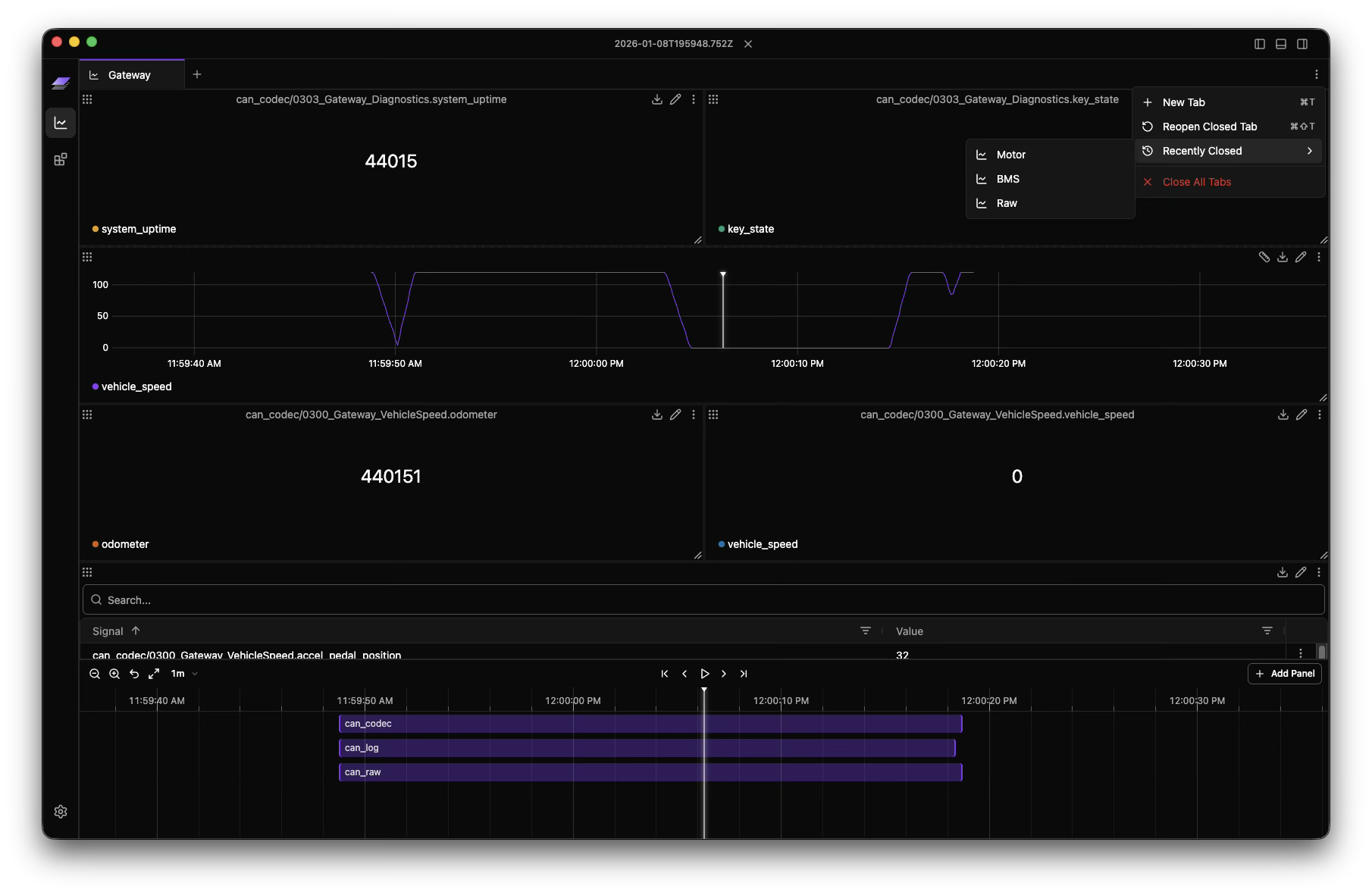
Undo Close All
When you close all tabs, each tab is added to the recently closed list. Press Cmd/Ctrl+Shift+T repeatedly to restore them one by one.
Tab Renaming
Only layout tabs can be renamed:
- Double-click the tab name to enter edit mode
- Type your new name (max 50 characters)
- Press
Enterto save orEscto cancel - Click outside the input to save
Default names follow the pattern "Untitled 1", "Untitled 2", etc.
Workspace Lifecycle
Loading a Workspace:
- Workspaces persist locally automatically
- Connection state and trace files are restored
- All tabs, panels, and settings are preserved
Recent Workspaces:
- The welcome screen shows your recently accessed workspaces
- Click any recent workspace to resume it
- Recent list is automatically maintained
Keyboard Shortcuts
Tabs
| Action | Shortcut |
|---|---|
| New tab | Cmd+T / Ctrl+T |
| Close tab | Cmd+W / Ctrl+W |
| Reopen closed tab | Cmd+Shift+T / Ctrl+Shift+T |
| Switch to tab 1-9 | Cmd/Ctrl + 1-9 |
| Next tab | Cmd/Ctrl+Shift+] or Alt+Right |
| Previous tab | Cmd/Ctrl+Shift+[ or Alt+Left |
| Save rename | Enter |
| Cancel rename | Esc |
Sidebars
| Action | Shortcut |
|---|---|
| Toggle left sidebar | Cmd+B / Ctrl+B |
| Toggle right sidebar | Cmd+J / Ctrl+J |
| Focus search | Cmd+F / Ctrl+F |
Workspace
| Action | Shortcut |
|---|---|
| Open command palette | Cmd+K / Ctrl+K |
| Close workspace | Close last tab or use close button |
Shortcut Availability
Keyboard shortcuts are disabled when typing in input fields or text areas.
Best Practices
Tab Organization:
- Use descriptive tab names for layout tabs
- Keep related visualizations in the same tab
- Use separate tabs for different analysis views
Next Steps
-
Browse signals, actions, extensions, layouts, and connections
-
Create and configure data visualizations
-
Save and share panel arrangements
-
Trigger tab, timeline, and workspace actions quickly
-
Navigate time and control playback