Table Panel
The Table Panel lets you inspect signal values in a high-density grid with fast sorting, filtering, and scope-aware signal display.
Overview
The table panel is timeline-aware:
- In live follow mode, it shows the latest values.
- In paused mode (live or trace), it shows values at the timeline cursor.
- During playback, values advance with the cursor.
Value lookup uses step-before behavior, so if no sample exists exactly at the cursor, the latest sample at or before the cursor is shown.
Columns
The current table columns are:
- Signal: Display path for the signal, including trace/agent scope when needed
- Value: Current value at the active timeline point
- Row Actions: Per-row menu (remove signal)
Working with Signals
Add signals by dragging from the sidebar or using the panel query builder.
When a panel signal is portable (not bound to a specific producer/trace), the table can show multiple rows for that signal path, one per matching source.
Multi-Agent and Multi-Trace
The table supports mixed data sources:
- Multiple live agents in one panel
- Multiple trace files in one panel
- Portable and scoped signal bindings in the same panel
When sources share signal paths, scope labels are included in signal display to avoid ambiguity.
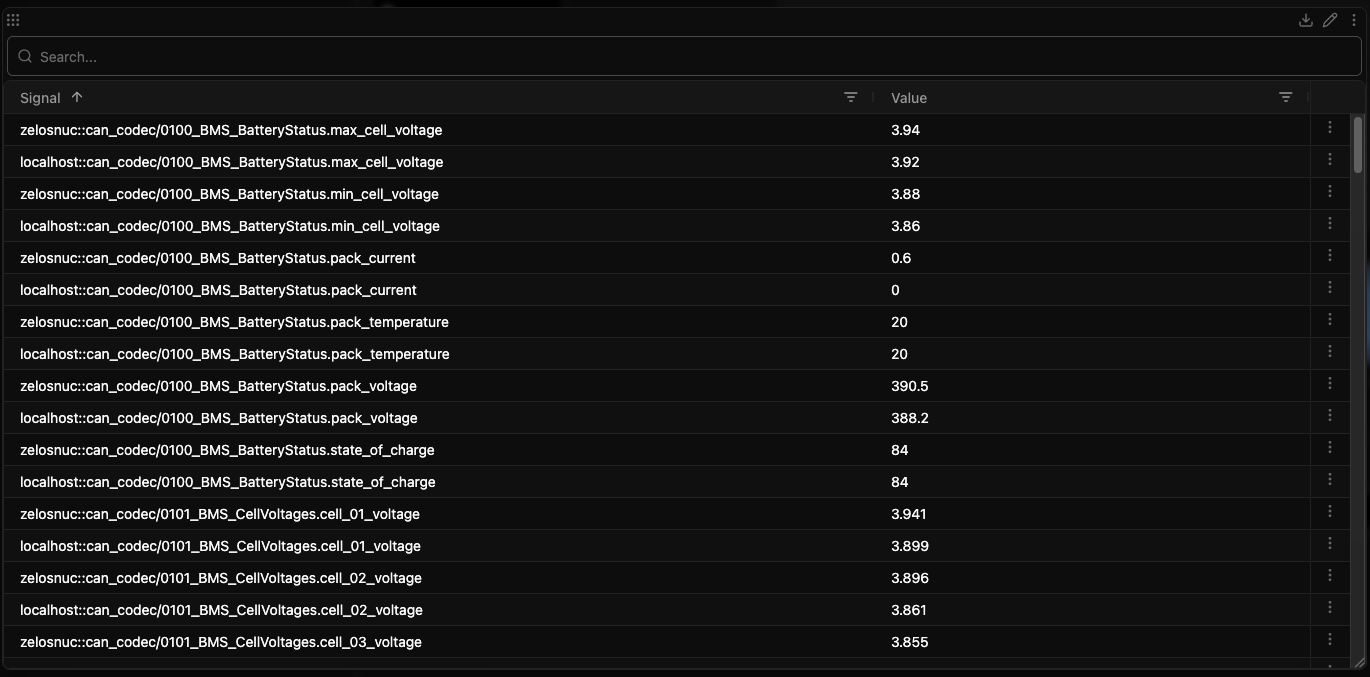
Value Formatting
The table formats values using signal metadata:
- Numeric values are shown with locale formatting
- Objects are stringified for readability
- Value-table mappings (enums) are applied automatically when available
Sorting
Click a column header to cycle sort direction:
- Ascending
- Descending
- None
Sort state is reflected directly in the column header.
Filtering
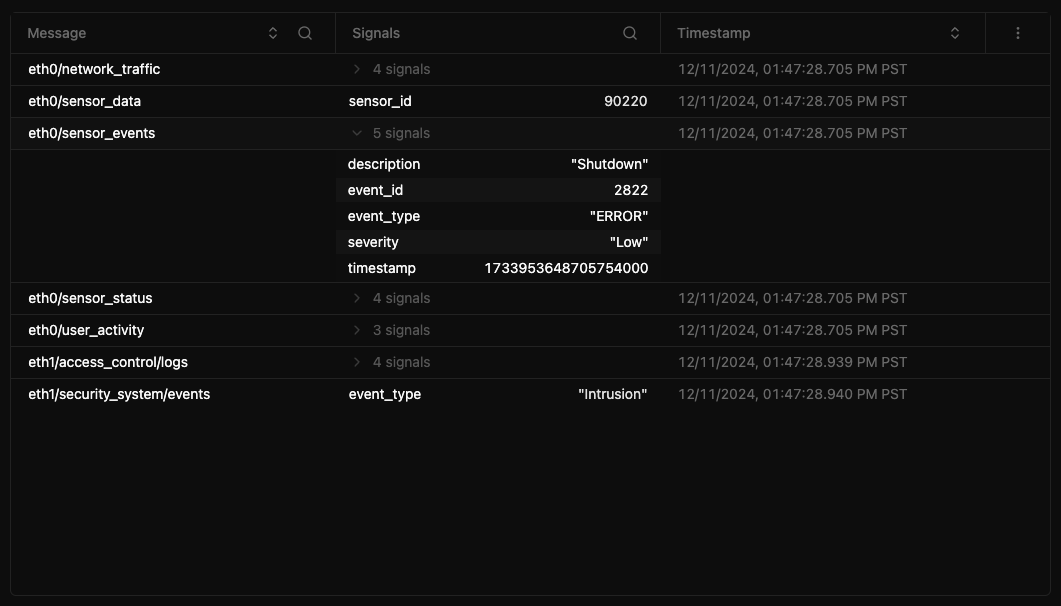
Quick Filter Search Bar
Use the search bar above the grid to filter rows quickly across signal display text and values.
Type to filter, or clear the input to restore all rows.
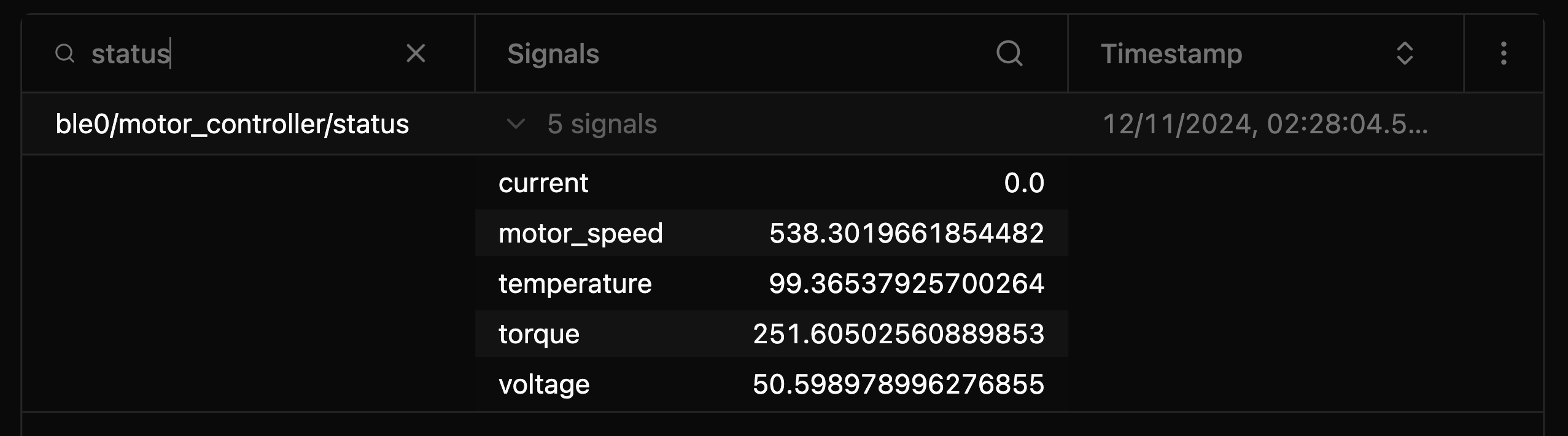
Column Filtering
Each sortable column also has a column-level filter menu.
This is useful for targeted filtering when broad search is too noisy.
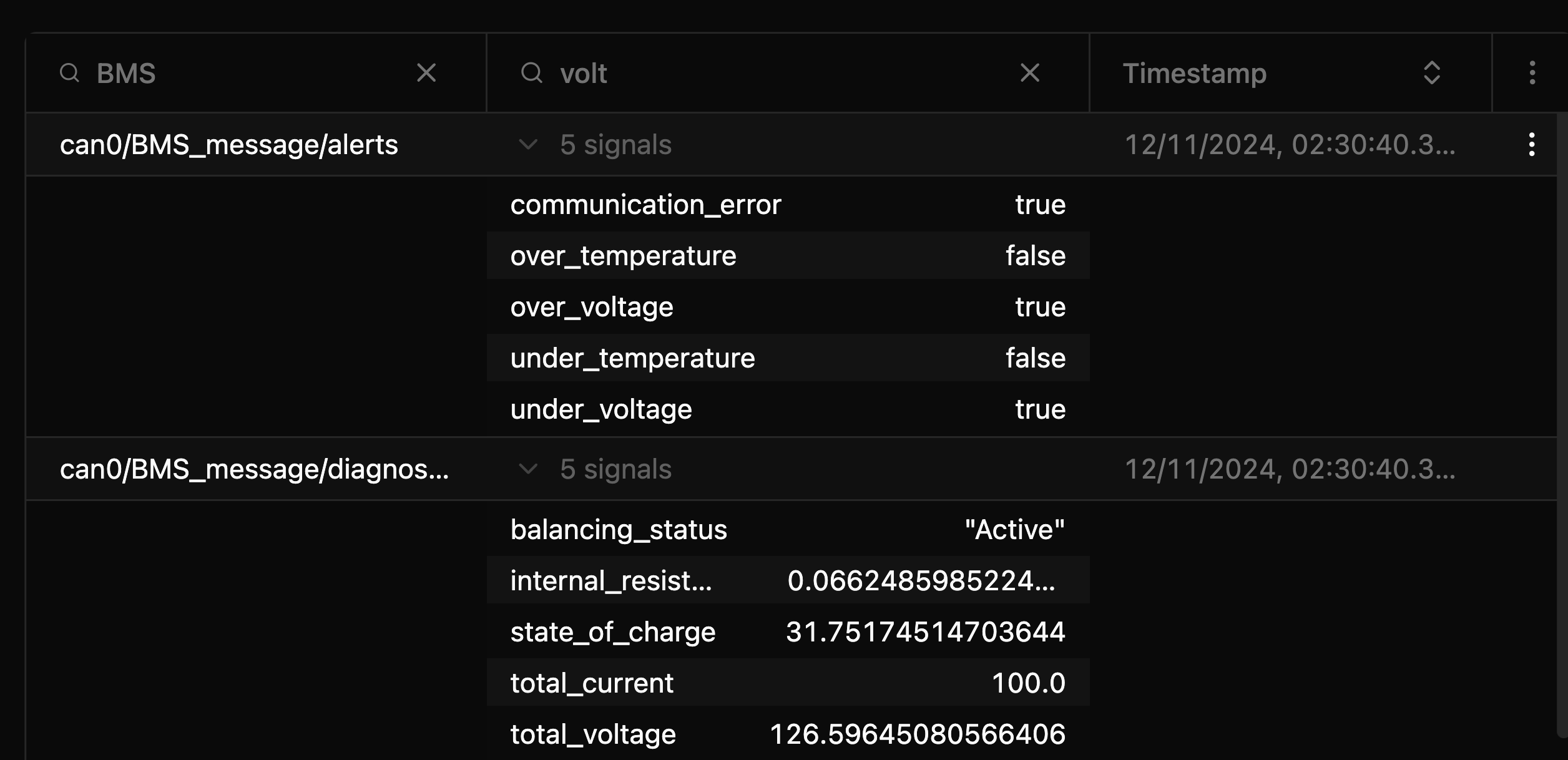
Combining Filters
You can combine quick filter and column filters for tighter data selection.
Column Sizing
- Drag a column divider to resize
- Double-click a divider to auto-fit based on content
Row Actions
Each row has a menu with:
- Remove: remove that signal binding from the panel